How to Recognize Apps, Windows and the Parts of a Window on Windows 11
What you need: A Windows 11 computer that you have signed in to. These steps use File Explorer, the app that shows your files and folders, as the example app.
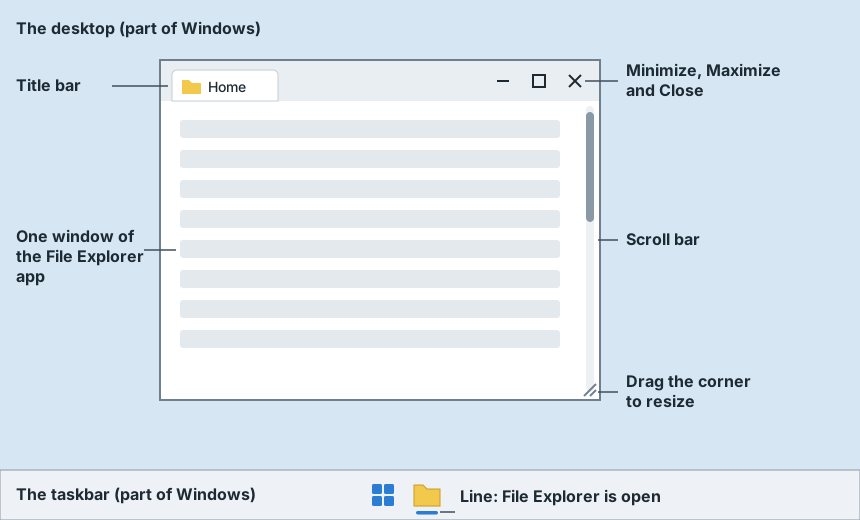
Steps
- Look at the whole screen. The picture behind everything is the desktop, and the bar along the bottom edge is the taskbar. They belong to Windows itself, so they stay on the screen when every window is closed.
- Click File Explorer, the yellow folder on the taskbar: move the pointer onto it, then press the left mouse button (or the lower-left part of the touchpad) once and let go. A window opens: a rectangle with its own edges, showing folders. File Explorer is an app, also called a program, and this rectangle is one of its windows. The line that appears under the File Explorer icon on the taskbar shows that the app is open. If you do not see File Explorer on the taskbar, click Start (the Windows logo), type File Explorer, then click File Explorer in the search results.
- Look at the strip along the top of the window, the title bar. In File Explorer it shows the name of the open folder, such as Home, on a tab. To move the window, put the pointer on an empty part of the title bar, hold down the left mouse button, slide the mouse, and let go. On a touchpad, press down on its lower-left part and keep pressing while you slide your finger, then lift it. The window moves with the pointer. If the window filled the screen, it becomes smaller as it moves. Let go before the pointer reaches the very top or a side of the screen; letting go there makes the window fill all or half of the screen.
- Look at the upper-right corner of the window. Three buttons sit side by side. The short line, Minimize, hides the window in the taskbar without closing it; clicking the app's icon on the taskbar brings it back. The square in the middle, Maximize, makes the window fill the screen; when it fills the screen, this button shows two overlapping squares, Restore Down, which makes it smaller again. The X, Close, closes the window. Point at each button without clicking to see its name. When you point at the square, a small panel of boxes may open below it; do not click it, and it closes when you move the pointer away.
- Open a second window of the same app. Click Start (the Windows logo) on the taskbar, type File Explorer, then click File Explorer in the search results. A second File Explorer window opens in front of the first. It may sit almost exactly on top of the first one and look the same. Both windows belong to the one File Explorer app.
- Move the pointer onto the File Explorer icon on the taskbar and hold it still. Two small pictures appear above it, one for each window. Move the pointer away.
- Click the X at the upper-right corner of the front window. Only that window closes. The other File Explorer window, which may look the same because it shows the same folder, is still on the screen, and the line under the File Explorer icon stays, because the app is still open in that window.
- Look along the right edge of the window. When a window holds more than it can show, a scroll bar there lets you move through the rest. It may show as a thin line, or appear only when the pointer moves over the window, and it becomes wider when you point at it. Rolling the mouse wheel, or sliding two fingers on the touchpad, scrolls in the same way. If everything fits in the window, there is no scroll bar.
- Make the window smaller. If the middle button at the upper right shows two overlapping squares, click it first. Then move the pointer onto the lower-right corner of the window, until the pointer becomes a slanted arrow with a point at each end. Hold down the left mouse button, slide toward the middle of the screen, and let go. The window becomes smaller. Dragging the corner the other way makes it bigger.
- Click the X at the upper-right corner of the window. The window closes, and the line under the File Explorer icon on the taskbar disappears: closing the last window of File Explorer also closed the app. Most apps close the same way. A few keep running after their last window closes and show a small icon near the time instead. The desktop and the taskbar stay.
Expected result: Both File Explorer windows are closed, there is no line under the File Explorer icon on the taskbar, and the desktop and the taskbar are still on the screen.
Practice these steps
Try this task on a pretend Windows 11 screen in your browser. The steps guide you one at a time, and nothing changes on your own computer.
Start the demo