How to Find Your Way Around the Taskbar on Windows 11
What you need: A Windows 11 computer that you have signed in to.
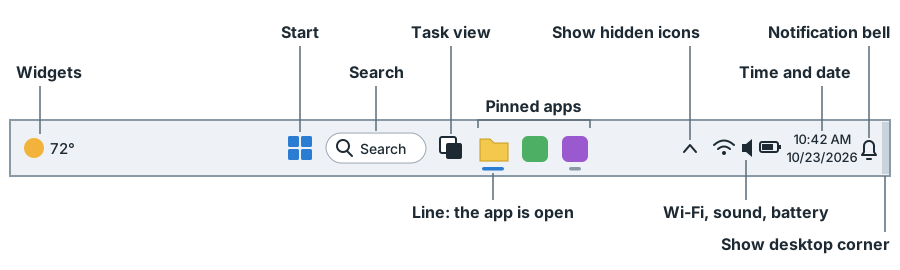
Steps
- Look at the bottom of the screen. The bar along the bottom edge is the taskbar. If you do not see it, move the pointer, the small arrow on the screen, to the very bottom edge of the screen and keep it there until the taskbar slides up. To move the pointer, slide your mouse, or slide one finger on the touchpad.
- Look at the far left end of the taskbar. On many computers, the weather is shown there: a small picture of the sun or clouds and the temperature. This is Widgets, which opens a large panel of news and weather. If the panel opens when the pointer rests there, press the Esc key, at the top-left corner of the keyboard, to close it. On some computers, Widgets is a button among the icons in the middle of the taskbar, or it is not shown.
- Find Start, the Windows logo made of four small squares. It is usually at the left end of the row of icons in the middle of the taskbar; on some computers, it is at the far left. Clicking Start opens the Start menu, where you find your apps and the power button. You do not need to click it now.
- Immediately to the right of Start, find Search: a box with the word Search in it, or a magnifying glass. Clicking it lets you type the name of an app, a setting or a file to find it. You do not need to click it now.
- Next to Search, find Task view, an icon of two overlapping squares. Clicking it shows every open window as a small picture, so you can click the one you want. On some computers, Task view is not shown. You do not need to click it now.
- Look at the icons to the right of Task view. These are apps pinned to the taskbar: their icons stay there whether the app is open or not, and clicking one opens that app. Move the pointer onto one and hold it still without clicking. A small box shows the app's name.
- Click File Explorer, the yellow folder: move the pointer onto it, then press the left mouse button (or the lower-left part of the touchpad) once and let go. A File Explorer window opens, and a line appears under its icon on the taskbar. If you do not see File Explorer on the taskbar, click Start, type File Explorer, then click File Explorer in the search results. A line under an icon means that app is open. The app you are using right now has its line in color.
- Move the pointer onto the File Explorer icon on the taskbar again and hold it still. A small picture of its window appears above the icon. When an app has several windows open, a picture appears for each one, and clicking a picture brings that window to the front. Move the pointer away, and the picture goes away.
- Look near the right end of the taskbar for a small arrow pointing up, Show hidden icons. Click it. A small box opens with icons for apps that keep running in the background. Click the arrow again to close the box. If you do not see the arrow, go on to the next step.
- To the right of the arrow, find the icons for the internet connection, the sound (a speaker) and, on a laptop, the battery. Together they are one button: clicking it opens Quick Settings, where you can change the volume or connect to Wi-Fi. This part of the taskbar, with its small icons, is called the system tray. You do not need to click it now.
- To the right of those icons are the time and the date, and on many computers a small bell beside them. Click the time and date. A panel opens with your notifications, which are messages from Windows and your apps, and a calendar below them. Click the time and date again to close the panel.
- Move the pointer to the very right end of the taskbar, past the time and the bell, into the bottom-right corner of the screen. Click there. The windows on the screen, including File Explorer, move out of the way, and you see the desktop. Click the same corner again, and the windows come back. If nothing happens, this corner is turned off on your computer; go on to the next step.
- Click the X at the upper-right corner of the File Explorer window. The window closes, and the line under the File Explorer icon on the taskbar disappears.
Expected result: File Explorer is closed, and you have found Widgets, Start, Search, Task view, the pinned apps, the line under an open app and the picture of its window, the hidden icons, the Quick Settings icons, the time and date with your notifications, and the corner that shows the desktop.
Practice these steps
Try this task on a pretend Windows 11 screen in your browser. The steps guide you one at a time, and nothing changes on your own computer.
Start the demo